







Get sales advice from our team 7 days a week
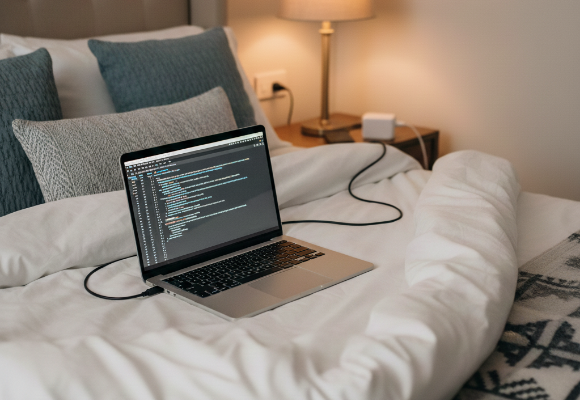
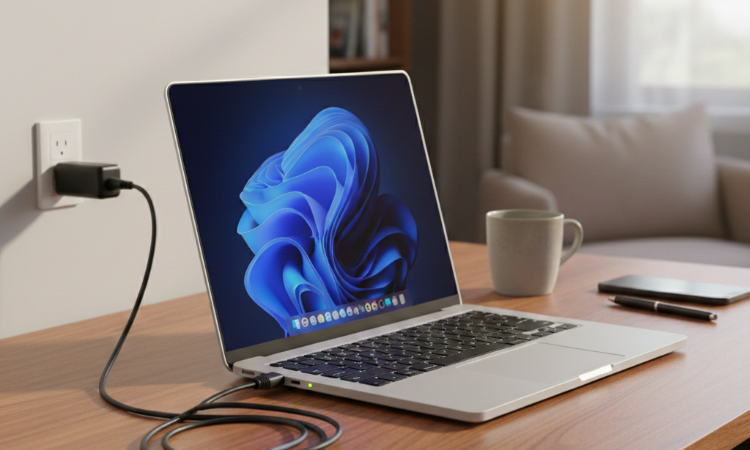
0871 244 0934The short answer: No. Lithium-ion batteries are like athletes—they don't like to be totally exhausted (0%), but they also don't like to be under constant maximum tension (100%). Keeping a battery pinned at 100% causes chemical stress that reduces its total capacity over time.
The Pro Fix: Look for "Optimised Charging" or "Battery Limit" settings in your OS. Most modern devices now allow you to cap the charge at 80%. This is the "sweet spot" for battery longevity if you’re a desk warrior who rarely unplugs.
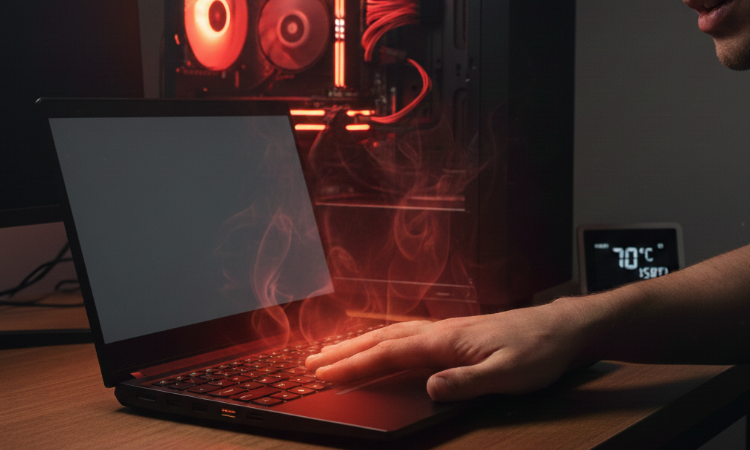
Physical Heat: Is the bottom of the laptop or the PC case uncomfortably hot to the touch?
Jet Engine Fans: Are your fans spinning at maximum speed even when you aren't doing much?
Thermal Throttling: Is your computer suddenly stuttering or running much slower than usual?
Unexpected Shutdowns: Does the screen go black and the power cut out without warning?
Glitchy Visuals: Are you seeing "artifacts" (lines, dots, or flickering) on your screen during games?
The "BIOS" Alert: Did you receive a "Fan Error" or "CPU Over-Temperature" message upon startup?
Surface Check: Move the laptop from a bed, sofa, or carpet to a hard, flat desk.
Clear the Vents: Check that no papers or cables are blocking the air intake/exhaust.
Kill Background Apps: Open Task Manager (Ctrl+Shift+Esc) and close apps with high CPU usage.
Switch Power Plans: Change your Windows power setting from "Best Performance" to "Balanced."
Capped Gaming: If gaming, turn on VSync or limit your FPS to 60 to give the GPU a break.
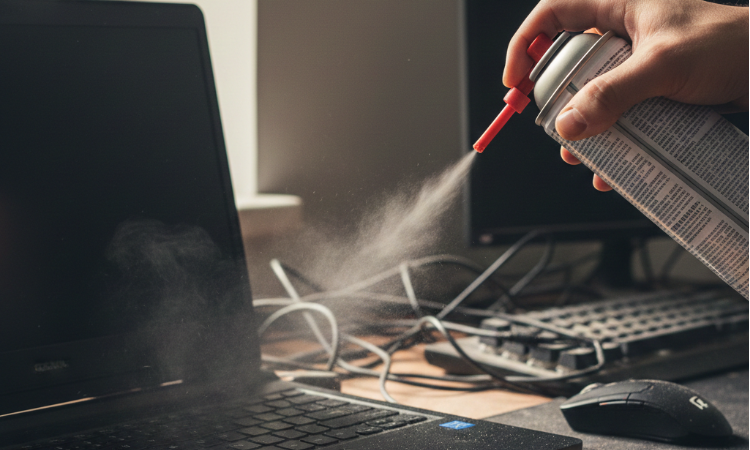
Dusting: Use a can of compressed air to blow out the vents (ensure the device is off).
Fan Inspection: Listen for grinding noises—if a fan is clicking, it likely needs replacing.
Update BIOS/Drivers: Sometimes manufacturers release updates that optimize how fans handle heat.
Cooling Pad: For laptops, consider an external cooling pad to increase airflow to the bottom intake.
Pro Service: If your tech is 3+ years old, the internal thermal paste may need a professional refresh.
If you want to be precise, download a free tool like HWMonitor or Core Temp and check your numbers.
Laptops (Standard & Gaming): Danger Zone: 95°C – 100°C. Most modern laptops will "throttle" (slow down) at 95°C and force a shutdown at 100°C–105°C to prevent permanent damage.
Desktop PCs: Danger Zone: Above 90°C. While chips can survive higher, consistent 90°C+ temps in a desktop usually point to a failing fan or bad thermal paste.
Smartphones & Tablets: Most phones will give you a "Temperature Warning" and disable the flash, dim the screen, or stop charging once the internal battery hits roughly 45°C–48°C.
Gaming Consoles (PS5 / Xbox Series X): Danger Zone: If your console displays an "Your PS5 is too hot" message, it is likely hitting 90°C+ internally. This is often caused by dust buildup in the "dust catchers" or placing the console in a closed cabinet.
Get a personalised quote from our power experts and ensure your tech is always ready for the task at hand. Click Here and find your power solution today.