











Appliances Direct
Laptops Direct
Drones Direct
Better Bathrooms
Furniture 123
Dehumidifiers
Outdoor Living
Aircon
Buying for Business?

Get sales advice from our team 7 days a week

0871 244 0934

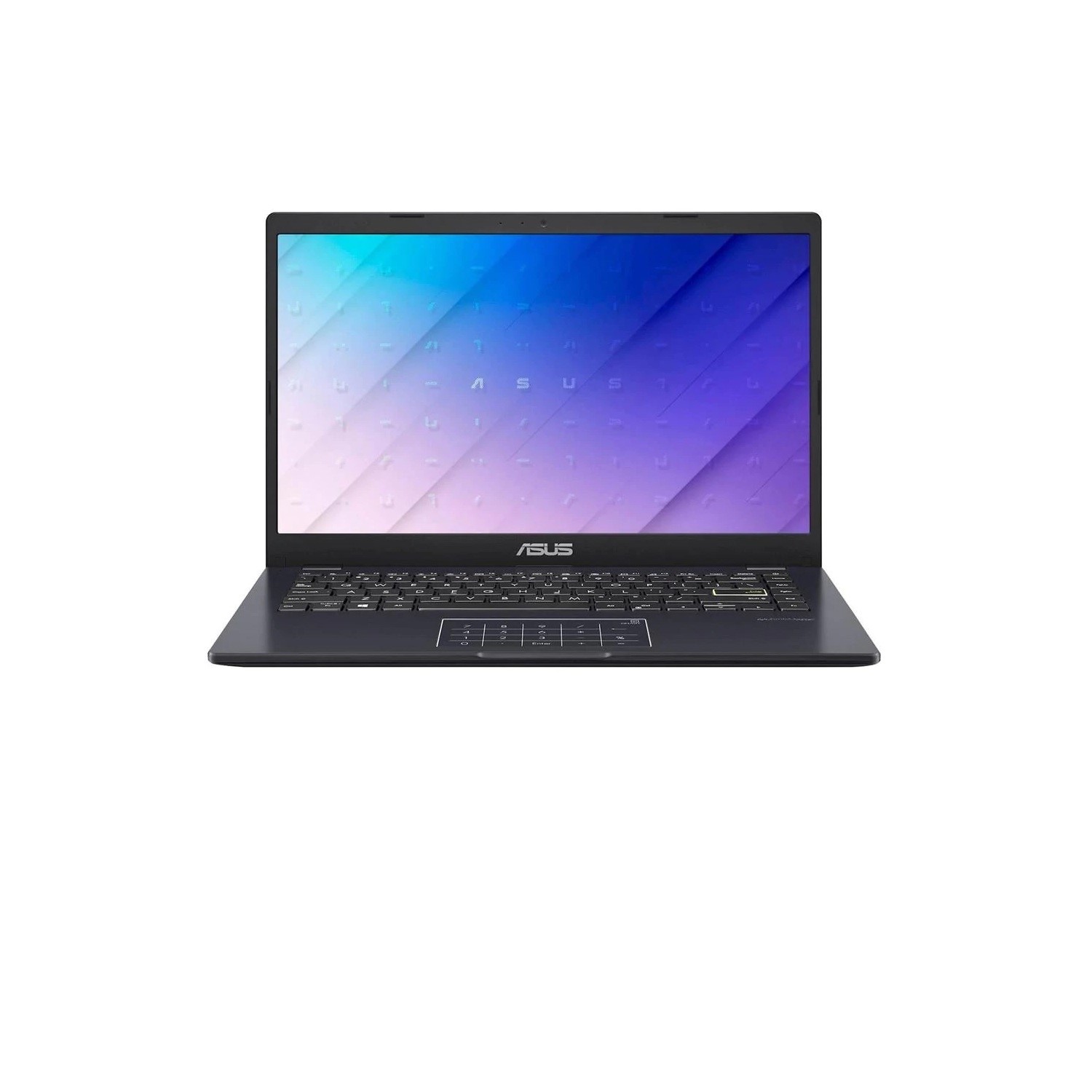
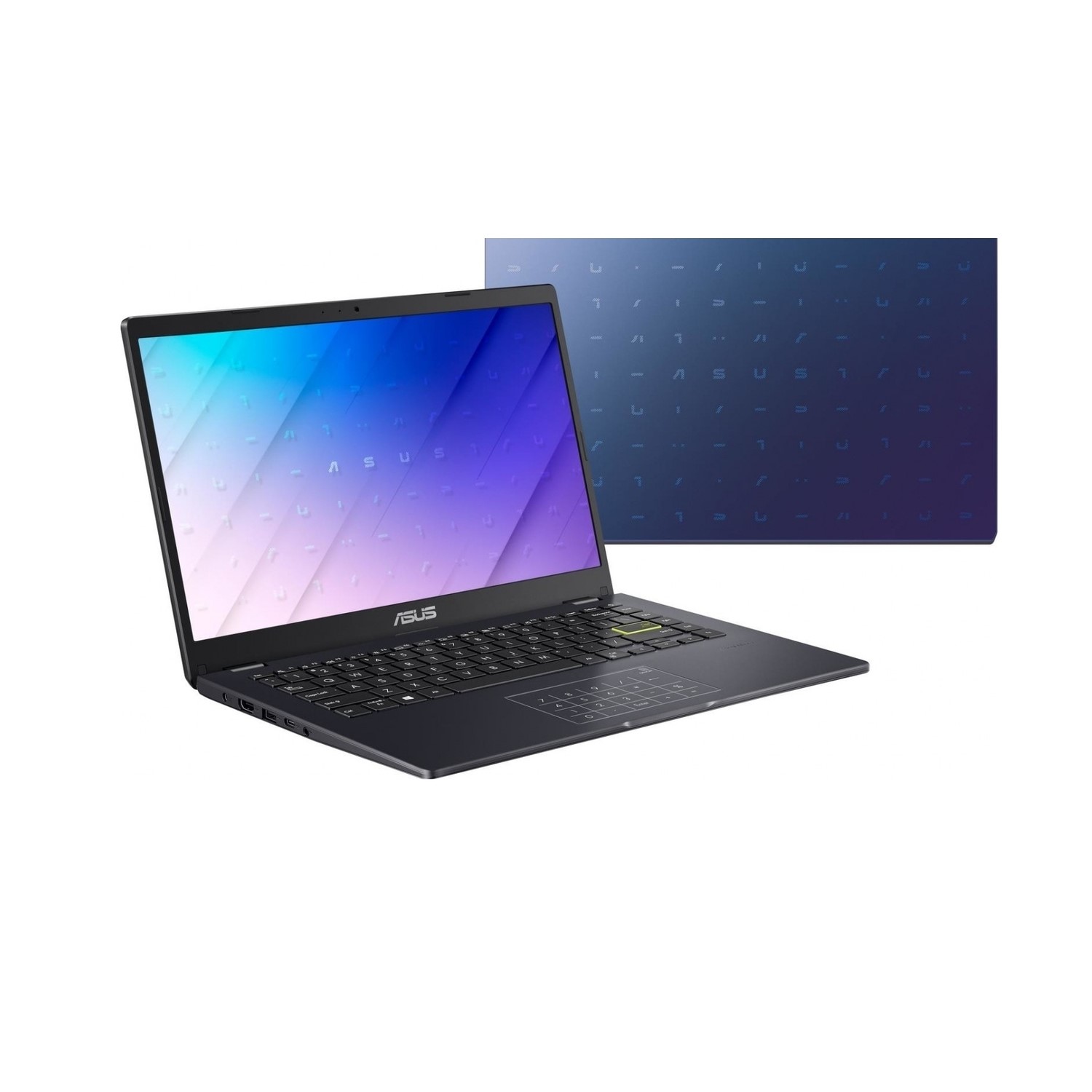
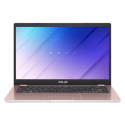
Refurbished Asus E410MA Intel Celeron N4020 4GB 64GB 14 Inch Windows 10 S Laptop

SKU: A1/E410MA-EK007WS/S Quickfind Code: 1796697

This product is no longer available.

Still need help?

For help finding something similar, just give us a call on 0871 244 0934*

* Calls cost 13p per min plus your network access charge

Intel Celeron processor

Whether you're scrolling through your news feed, buying groceries online or emailing friends and family, the Asus E410MA 14" Laptop can take on your daily tasks. Powered by an Intel Celeron processor, you can enjoy speedy performance and smooth responsiveness for your everyday browsing.

Smart design

The Asus E410MA has a super-thin bezel and detailed Full HD resolution, so you get more screen for more immersive viewing. And the digital keypad feature makes it easy to input numbers - simply tap the icon and type in your data with the touch pad.

Sleek and portable

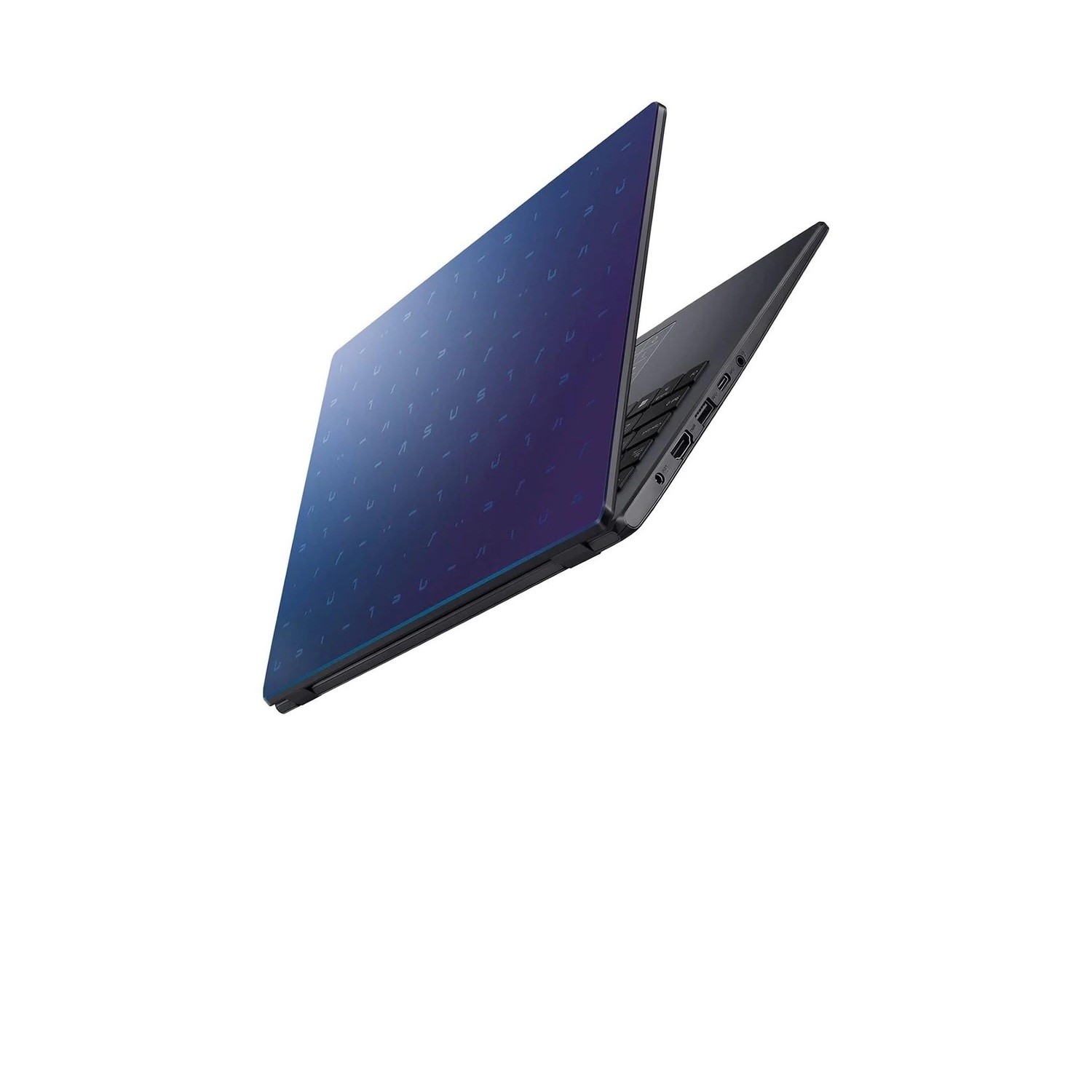
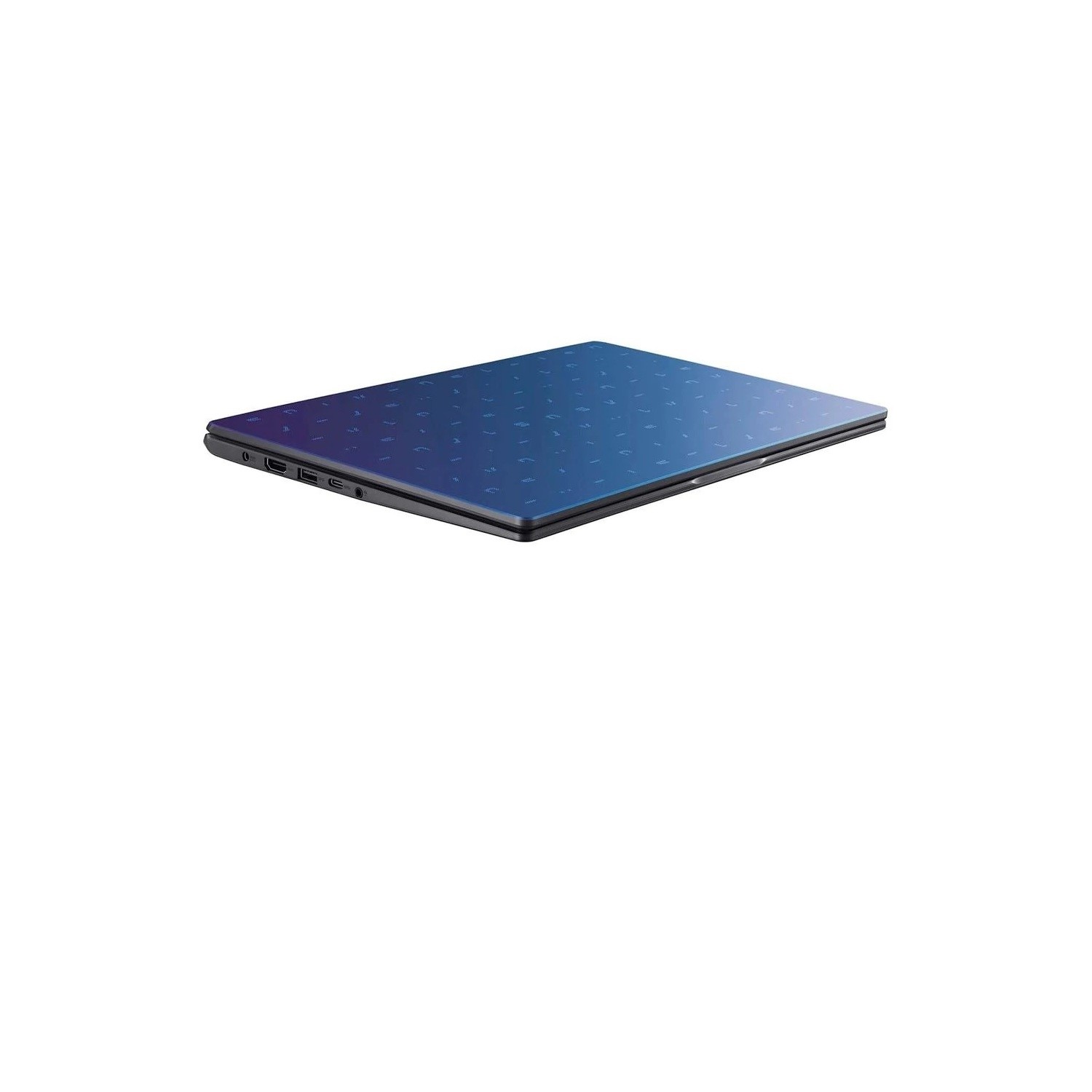
The E410MA 14" Laptop is slim enough to fit comfortably in your bag. And it only weighs 1.3 kg, so it's light enough to carry around all day.



Free Upgrade to Windows 10 Home. Windows 10 S is designed for security and performance, but if you'd prefer the full Windows 10 Home experience, it's easy and free to upgrade! Find out how by clicking here »

How to upgrade to Windows 10 Home

Windows 10 in S mode is designed for security and performance, exclusively running apps from the Microsoft Store. If you want to install an app that isn't available in the Microsoft Store, you'll need to switch out of S mode. Switching out of S mode is one-way. If you make the switch, you won't be able to go back to Windows 10 in S mode. There's no charge to switch out of S mode.

1. On your PC running Windows 10 in S mode, open Settings > Updates & Security > Activation

2. In the "Switch to Windows 10 or Switch to Windows 10 Pro" section, select "Go to Store" to open the Microsoft Store (if you also see an "upgrade your edition of Windows" section, be careful not to click to "Go to Store" link that appears there).

3. When the Microsoft Store launches, select the "Get" button. After you see a confirmation message on the page, you'll now be in Windows 10 Home mode and will be able to install apps from outside of the Microsoft Store.


You may also like

Recently viewed


Back to top