











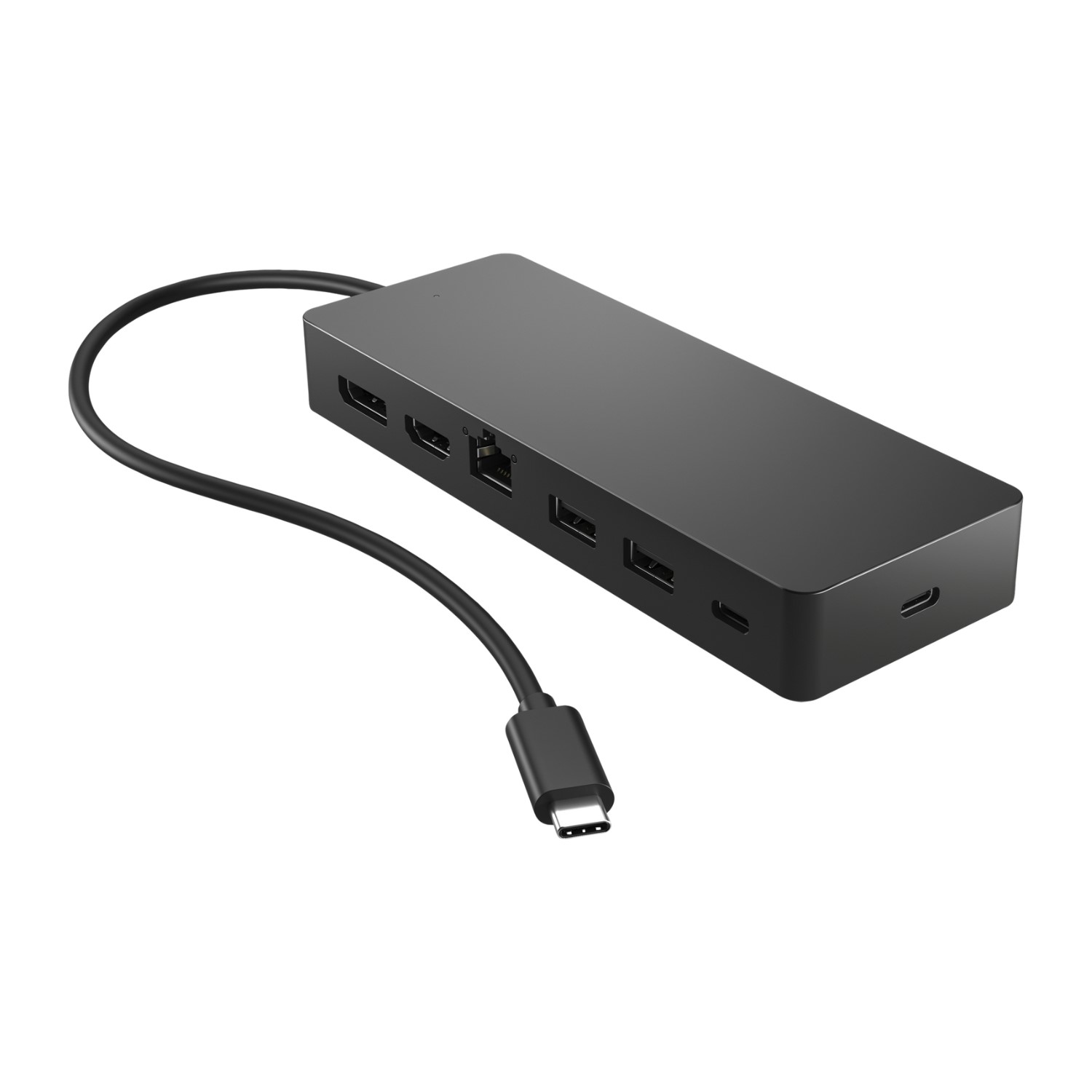
Choose a dock around how you work
Your ideal dock depends on the equipment you want to connect. Select the closest match, then confirm the details against your laptop and monitor specifications.
Home office
If you want to connect a monitor, keyboard, mouse, webcam, headset and wired network, look for a dock with the right mix of display, USB, audio and Ethernet ports. A single host cable can keep your desk easier to connect when the dock supports your laptop.
- Check the monitor connection and resolution you plan to use
- Look for enough USB ports for your everyday accessories
- Check whether the dock provides laptop charging and includes a power adapter
Multiple monitors
Start with the number of screens, their resolution and their refresh rate. Then check the dock’s display outputs and the laptop’s maximum external display support. Two physical video ports do not automatically mean that every laptop can run two independent screens.
- Check HDMI, DisplayPort or USB-C monitor compatibility
- Compare the dock’s stated maximum display configuration
- Check operating-system and laptop model limitations before buying
Creative work
Photographers, designers and video editors may need a high-resolution display, fast external storage, an SD card reader and reliable connectivity. Consider how many devices will use the dock at the same time, because several connections share the dock’s link to the laptop.
- Check display colour, resolution and refresh requirements separately
- Compare USB data speeds for external drives and card readers
- Choose enough storage and card-reader connections for your workflow
Travel and study
A compact multiport hub can be easier to carry between lectures, meetings or workspaces. Prioritise the ports you use most, such as HDMI, USB-A, USB-C and card readers, and check whether it is powered from the laptop or needs a separate adapter.
- Compare size, cable length and the ports you will carry
- Check whether USB-C power pass-through is supported
- Remember that a small hub may offer fewer connections than a desk dock
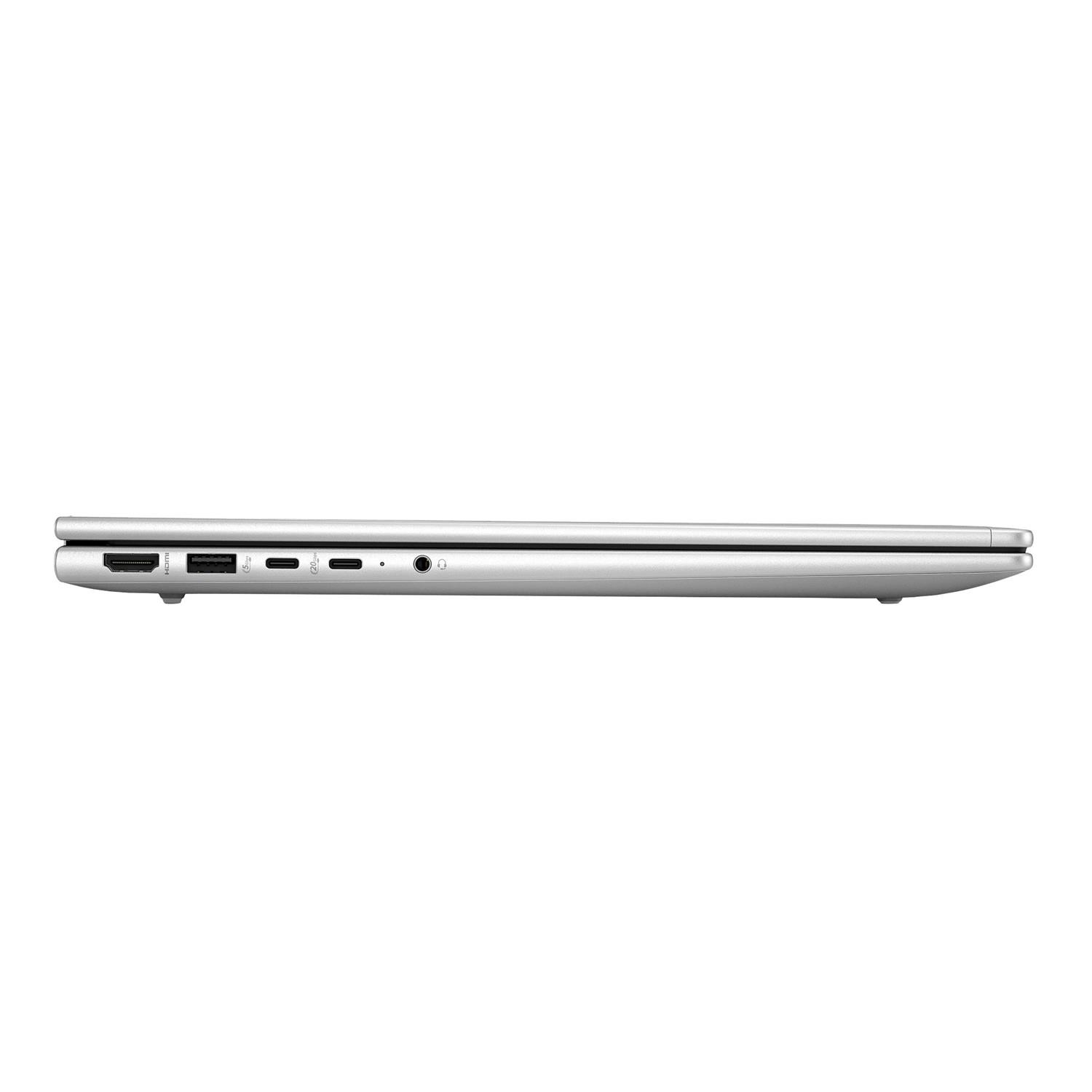
Check the laptop’s ports first
The connector on the laptop is the starting point for compatibility. Look for the port symbol, read the laptop’s technical specifications and check which features are available through that port.
USB-C is the shape
USB-C describes the connector. It does not, by itself, confirm video output, charging, USB4 or Thunderbolt support.
Look for video support
DisplayPort Alt Mode, USB4 or Thunderbolt support can affect whether a USB-C dock can drive an external monitor.
Check the host cable
The dock cable also needs to support the data, video and power features you want to use. Follow the dock manufacturer’s cable guidance.
Compare the main docking station types
There is a difference between a portable hub and a full desk dock. Swipe through the options and compare the trade-offs for your setup.
Understand the features that matter
Dock specifications are useful when they answer a question about your setup. Here is what to check before you buy.
Plan a multi-monitor setup carefully
More ports do not always mean more independent screens. Check every part of the display chain before you choose a dock.
| Check | What to look for | Why it matters |
|---|---|---|
| Laptop support | Maximum external displays, supported USB-C features, USB4 or Thunderbolt support | The laptop can limit the number of screens and the display features available through the dock |
| Dock outputs | HDMI, DisplayPort or USB-C outputs, plus the stated display configuration | Physical outputs need to match the monitor cables and the dock’s supported arrangement |
| Resolution and refresh | The maximum resolution and refresh rate for the number of screens connected | One display may support a different maximum from a two- or three-display setup |
| Operating system | Support for your version of Windows, macOS, ChromeOS or another operating system | Display handling and driver requirements can vary between platforms |
| Cables and adapters | Required HDMI, DisplayPort or USB-C cables and any supplied adapters | A compatible dock can still need the correct cable or adapter for each monitor |
Shop the rest of your setup
Once you know which dock features you need, compare the dock range and the equipment that connects to it.
Use this docking station checklist
Tick each point as you compare products. The checklist stays on this page and does not save personal information.
0 of 8 checked
Laptop docking station questions, answered
Will any USB-C dock work with my laptop?
No. USB-C is the connector type, and different ports support different combinations of video output, charging and data standards. Check the laptop’s port specifications and the dock’s host requirements together.
Can a docking station charge a laptop?
Some docks can charge a compatible laptop through USB-C Power Delivery. Check the dock’s stated charging output, the laptop’s charging requirement and whether the dock includes a power adapter. A bus-powered hub may not provide the same charging support.
How many monitors can I connect to a docking station?
It depends on the laptop, dock, operating system, display outputs, resolution and refresh rate. Check the complete display configuration rather than counting the physical ports on the dock.
Is a docking station the same as a USB hub?
Not always. A multiport USB hub is usually smaller and adds selected connections. A full docking station often adds more ports, display outputs, wired network and laptop charging, but the exact features vary by model.
Do I need a Thunderbolt dock?
Choose one when your laptop supports Thunderbolt and your setup needs the display, storage or peripheral bandwidth it offers. For a simpler monitor and accessory setup, a compatible USB-C or USB4 dock may be a more practical fit.
What is a DisplayLink docking station?
DisplayLink uses software and a DisplayLink chip in the dock to provide display connections over USB. Check the manufacturer’s operating-system support, software permissions and the dock’s stated display limits before buying.
Can I use a docking station with a gaming laptop?
Yes, if the dock and laptop support the connections you need. For high-refresh gaming displays, check the dock’s maximum resolution and refresh rate carefully, and compare whether a direct connection to the laptop is more suitable for your setup.
Use the supplied power adapter and cables where instructed, keep vents clear and place the dock on a stable surface. Connect equipment according to the manufacturer’s guidance, check that cables are secure and avoid forcing a connector into a port. If a dock or cable becomes unusually hot, damaged or unstable, disconnect it and check the product guidance.
Ready to connect your laptop
Use your laptop model, display plan and port checklist to narrow down the right docking station.