








Get sales advice from our team 7 days a week
0871 244 0934Secure your digital life by following our simple guide on how to install Norton 360 on your Windows PC or Mac. From activating your product key to setting up real-time threat protection, we make it easy to defend your tech against malware and online risks.
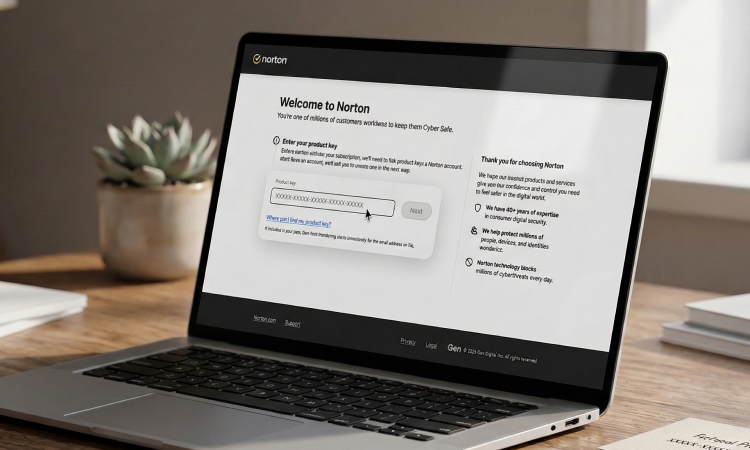
Before Norton can activate your subscription, they'll need to link your product key with a Norton account. If you don't have an account, they'll ask you to create one in the next step.
Activate now »
On your account dashboard, click the Download button. If you have multiple services, visit the My Subscriptions tab and select the active product you wish to install.
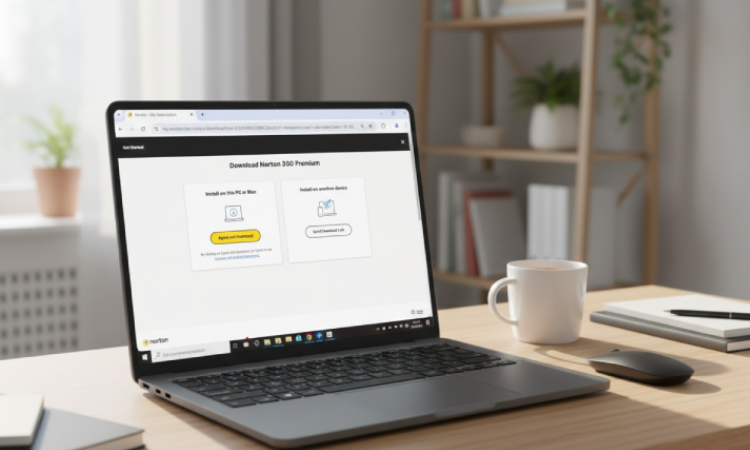
On the 'Get Started' page, click Agree and Download to begin the process.

If your laptop is running in Windows 11 or 10 S mode, click Get it from Microsoft to install directly from the Microsoft Store.

Once the file finishes downloading, press Ctrl + J on your keyboard to open your browser's download folder, then double-click the Norton setup file.

If a 'User Account Control' window pops up, click Continue and follow the remaining on-screen prompts to finish the setup.
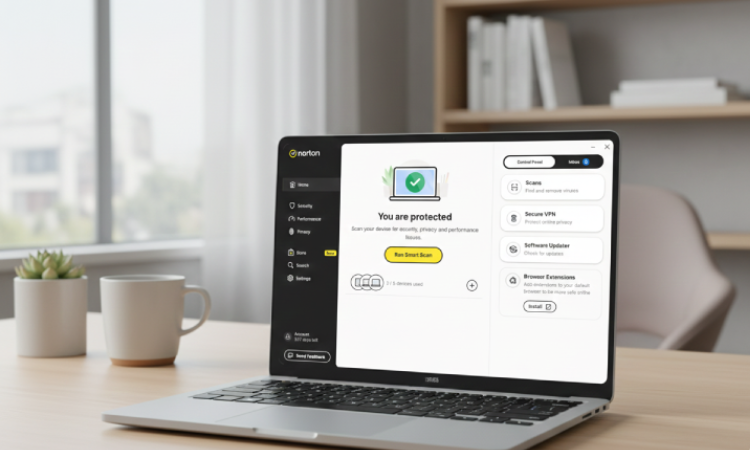
After the software is installed, follow the final instructions to link your device to your account, which also allows you to protect additional hardware.
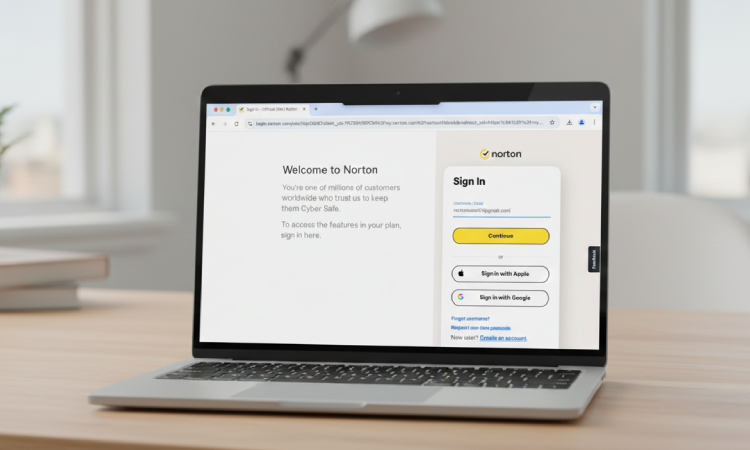
On your main dashboard, click the Download button.

If you have multiple services, click the My Subscriptions tab. Find your active Norton product and select Download.
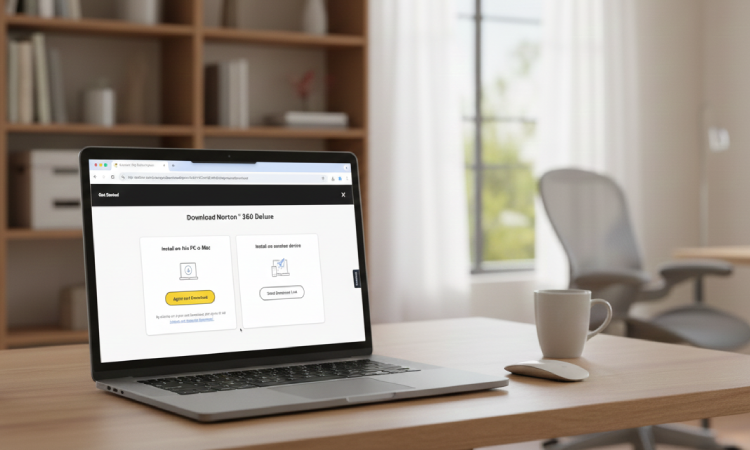
On the "Get Started" page, click Agree and Download to begin the file transfer.

Ensure your Mac is running OS X 10.10.x or later to support Norton version 8.x.
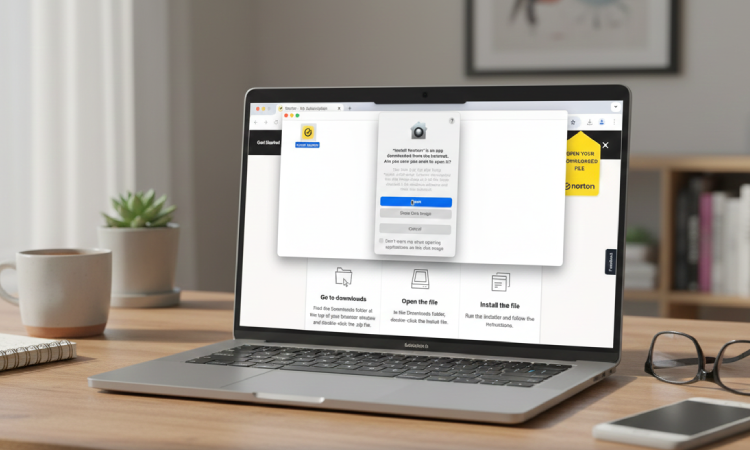
Open the downloaded file and follow the on-screen prompts to finish the installation.
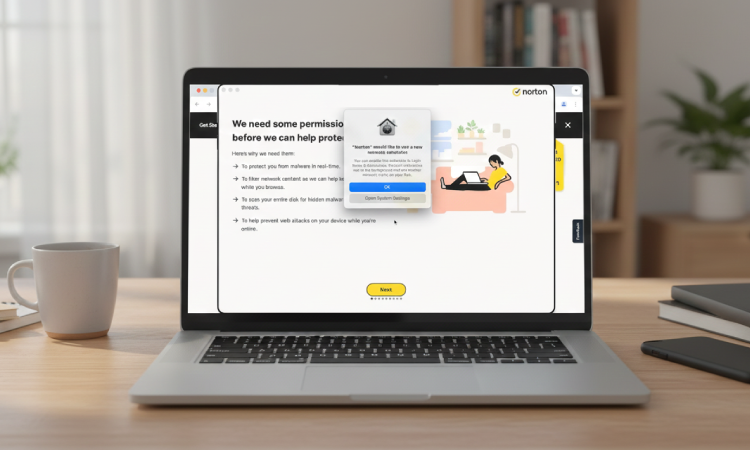
Once successfully installed you will need to enable a new network extension in order for Norton to protect you.



