











Appliances Direct
Laptops Direct
Drones Direct
Better Bathrooms
Furniture 123
Dehumidifiers
Outdoor Living
Aircon
Buying for Business?

Get sales advice from our team 7 days a week

0871 244 0934

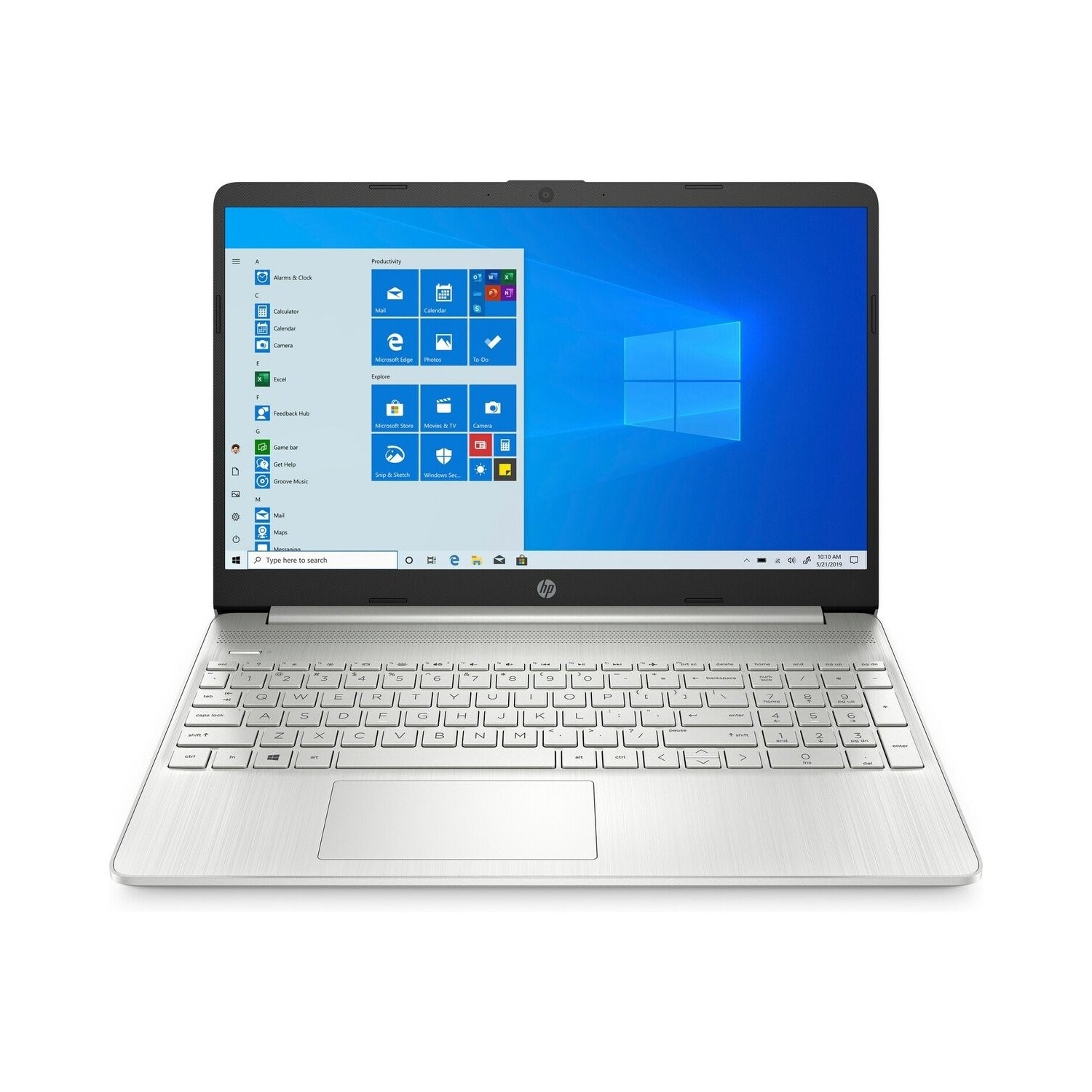
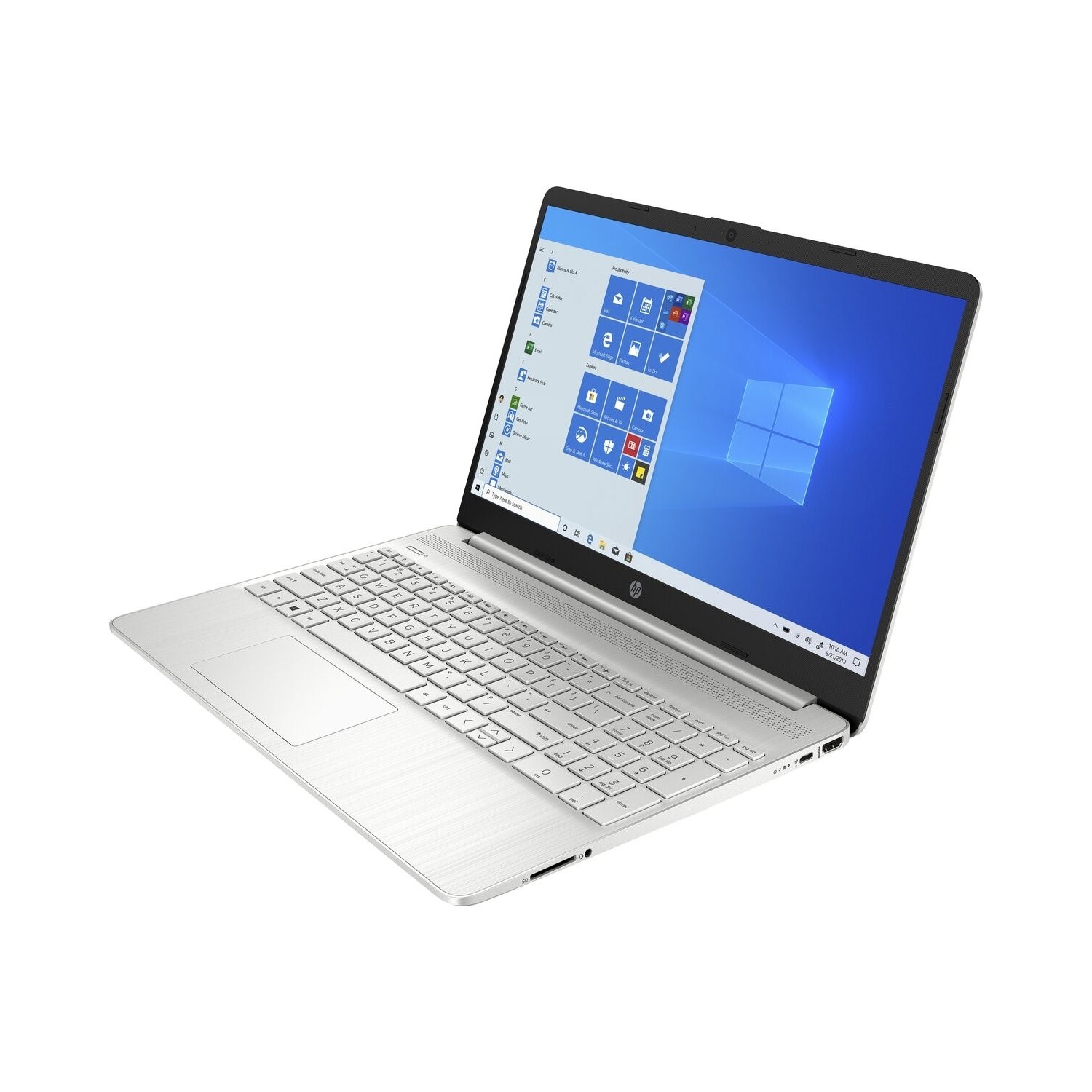
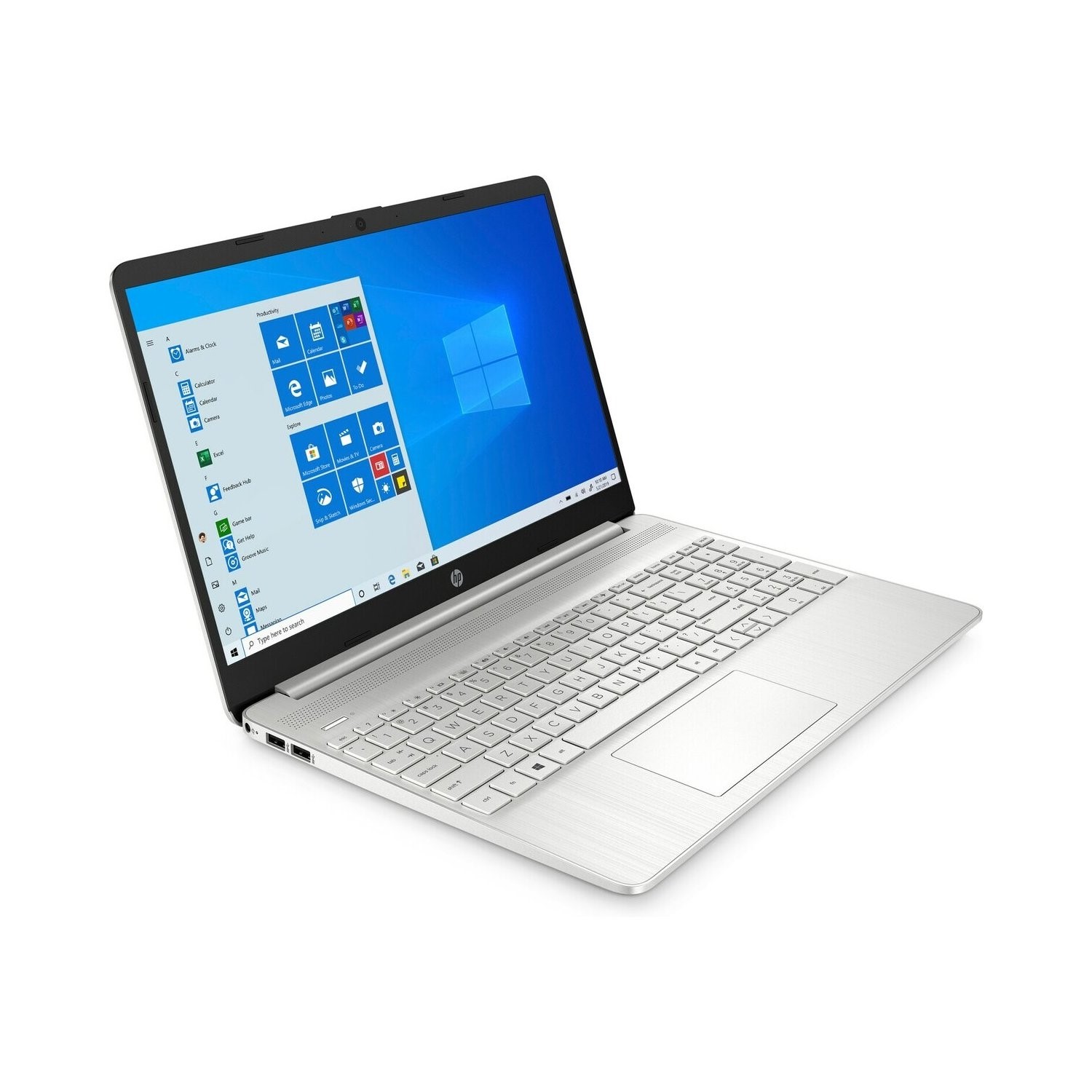
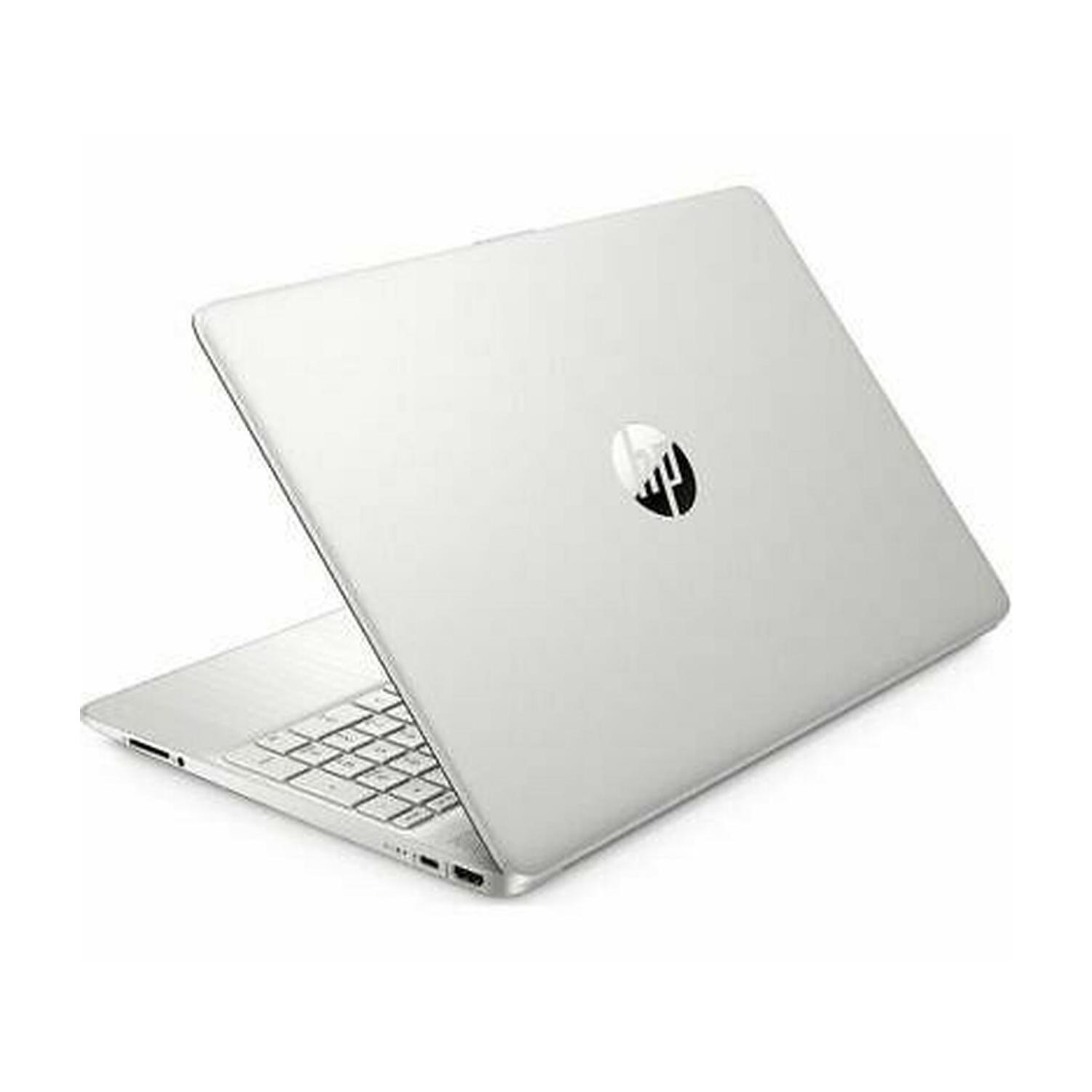
Refurbished HP 15s-eq1516sa AMD Ryzen 3 3250U 4GB 128GB 15.6 Inch Windows 10 S Laptop

SKU: A2/1E1R6EA/S Quickfind Code: 1793426
SAVE 28%

Get it done

Accomplish anything with the HP 15s-eq1516sa 15.6" Laptop. The AMD Ryzen 3 processor delivers the processing power you need to get your work done. Whether you're streaming Netflix, chatting to your mates on social media or putting the final touches on that work project you've been avoiding.

Sleek, lightweight design

The world is your office. Light and compact, bring the HP Pavilion 15s-eq1516sa along with you wherever you fancy working.

Fast storage

You've got to keep those amazing holiday snaps somewhere. With 128 GB of storage, there's plenty of space for your photos, videos and important files. They'll load super quick on SSD, faster than a traditional hard drive. Not enough for you? Pop in an SD card for some extra room.

Free Upgrade to Windows 10 Home. Windows 10 S is designed for security and performance, but if you'd prefer the full Windows 10 Home experience, it's easy and free to upgrade! Find out how by clicking here »

How to upgrade to Windows 10 Home

Windows 10 in S mode is designed for security and performance, exclusively running apps from the Microsoft Store. If you want to install an app that isn't available in the Microsoft Store, you'll need to switch out of S mode. Switching out of S mode is one-way. If you make the switch, you won't be able to go back to Windows 10 in S mode. There's no charge to switch out of S mode.

1. On your PC running Windows 10 in S mode, open Settings > Updates & Security > Activation

2. In the "Switch to Windows 10 or Switch to Windows 10 Pro" section, select "Go to Store" to open the Microsoft Store (if you also see an "upgrade your edition of Windows" section, be careful not to click to "Go to Store" link that appears there).

3. When the Microsoft Store launches, select the "Get" button. After you see a confirmation message on the page, you'll now be in Windows 10 Home mode and will be able to install apps from outside of the Microsoft Store.


You may also like

Recently viewed


Back to top